
How to Use Home Command Center
What Is Home Command Center?
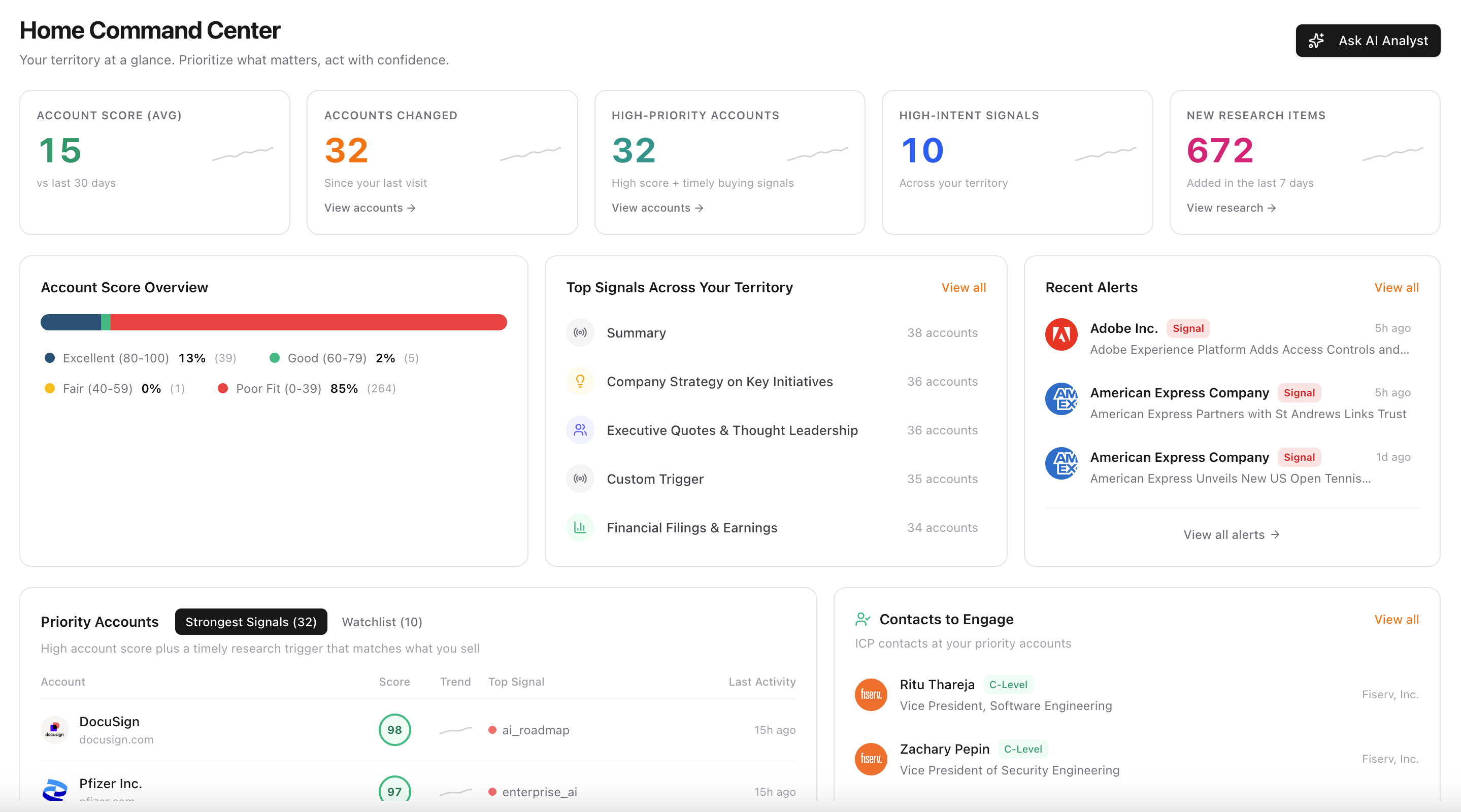
Home Command Center is your daily briefing for the accounts you own. It answers three questions, then gets you into the work:
- Who should I work today?
- Why is this account hot right now?
- What is blocking me — missing senior contacts, or no alerts watching the account?
Open Home after you sign in. From there you can jump into an account, start a contact search, or set up alerts without losing the plot.
Before You Start
Home only ranks accounts you have already researched. If the page looks empty, finish setup first:
- Complete your profile (company, role, and what you sell). ChatAE uses this so signals are relevant to your motion, not generic news.
- Save research triggers that match how you sell — for example leadership changes, hiring, product investment, cost pressure, or compliance.
- Run research on the accounts in your book.
- Search contacts and set alerts on the accounts you care about most.
Troubleshooting an empty Home page:
- If priority accounts are full but Contacts to Engage is empty: you need contact search.
- If Recent Alerts is empty: you need monitors on those accounts.
- If everything is empty: you need research, not a different view.
How ChatAE Decides "Priority"
Every module that says priority, strongest, or high-priority uses the same definition:
A high account score (70 or above) and a timely buying signal from research.
- Account score is built from your research triggers, evaluated against what you sell.
- Timely means at least one trigger hit in the last 30 days.
- Fresher hits, more hits, and stronger intent rank higher.
A high-scoring account with no recent hit appears on the Watchlist — not ignored, just quiet. A lower-scoring account with a new hit can still matter, but Home asks you to work the priority set first.
That same set is used across Strongest Signals, Contacts to Engage, Contact Gaps, and Alerts Gaps. If a name is missing from Coverage Gaps, it's because it's not in the priority set.
The 10-Minute Daily Loop
Work the page top to bottom. Do not start in Coverage Gaps until you know which accounts matter.
- KPI cards — Is the book healthier, busier, or stalling?
- Account Score Overview — Hover a band to see who sits in Excellent vs Poor Fit.
- Top Signals — Click a theme to see which accounts share that motion.
- Strongest Signals — Pick two or three accounts. Click the row and read the research.
- Contacts to Engage — Who can you actually call?
- Coverage Gaps — Fill senior-contact holes and missing alerts on those same accounts.
- Recent Alerts — Catch overnight news.
- Ask AI Analyst — Use only when you need a synthesis, not a tour of the page.
If you only have five minutes, do steps 4–6. That is the action layer.
KPI Cards
These numbers are directional. Use them to notice change, then use the sections below to act.
- Account Score (Avg) — Average score across scored accounts. A low average usually means you need better-fit accounts or more complete research, not more alerts.
- Accounts Changed — Accounts with new research in the last 7 days. If this jumps, something moved.
- High-Priority Accounts — Accounts that pass the priority rule. This is your working set.
- High-Intent Signals — Recent alert events across your territory. Pair this with Recent Alerts.
- New Research Items — Research cards added in the last 7 days. If this is zero, run research. Home has nothing new to rank.
Account Score Overview
The stacked bar is your entire scored book, not only priority accounts.
- Excellent: 80–100
- Good: 60–79
- Fair: 40–59
- Poor Fit: 0–39
Hover a color on the bar, or the legend underneath, to see the accounts in that band (highest score first). Click a name to open the account.
How to read it:
- Excellent and high Good, with recent signals = today's outreach.
- Fair with a new leadership or hiring hit = worth staying close to.
- A large Poor Fit slice = wrong accounts, or triggers that don't match what you sell.
Priority still requires a score of 70 or higher. An account at 68 can look healthy in this chart and still be left out of Strongest Signals.
Top Signals Across Your Territory
Research is grouped by theme — Platform, AI, Leadership, Hiring, Financials, Risk — with a count of accounts in each.
Click a theme to see the accounts. Use this to spot a motion, not a single deal:
- Several accounts hiring platform roles = your expansion story is timely.
- Leadership changes = new buyers.
- Cost themes = lead with efficiency, not a net-new pitch.
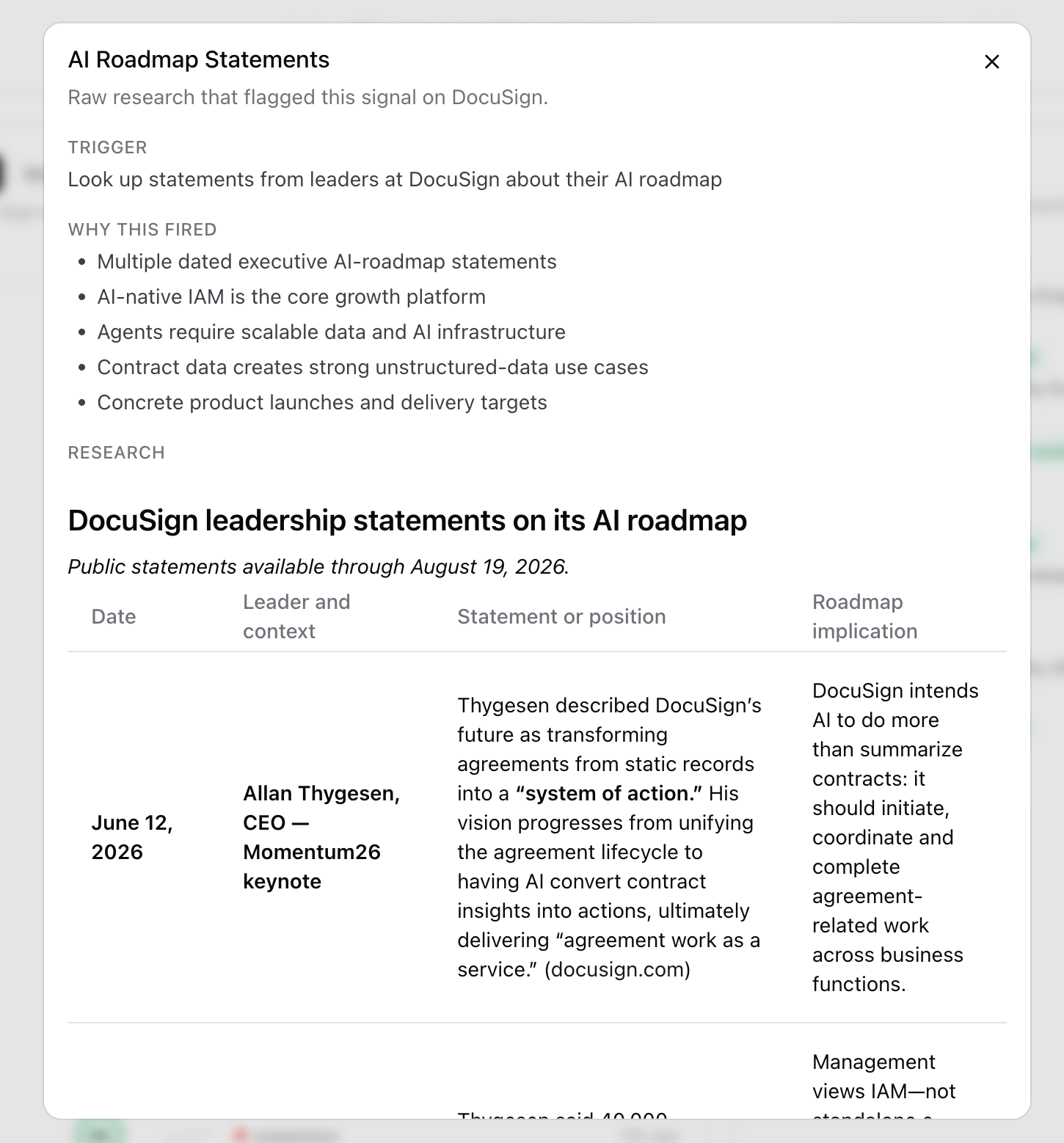
When you click into an account's signal, you see the full research behind it — the trigger, why it fired, and the sourced write-up:
Priority Accounts
Strongest Signals
This is the working set: high score and a research hit in the last 30 days.
Click the row to open the research behind that signal — the trigger, why it fired, the write-up, and sources. Read this before you send anything.
Work the list in order. The first two or three names are where the morning should go.
Watchlist
Accounts that still score 70 or higher but have no recent hit. They are important logos that went quiet — not a penalty box.
Re-run research or wait for an alert. When a new hit lands, they move back to Strongest Signals.
Contacts to Engage
Senior people at priority accounts only: C-level, VP/Head, and Director. ChatAE spreads recommendations across accounts so one logo doesn't fill the list. New people from Find Contacts appear at the top.
How to use it:
- If a Strongest Signals account already has a VP or C-level here, start there.
- If the account is hot and nobody from that company appears, go to Coverage Gaps.
A strong research score does not mean you have coverage.
Coverage Gaps
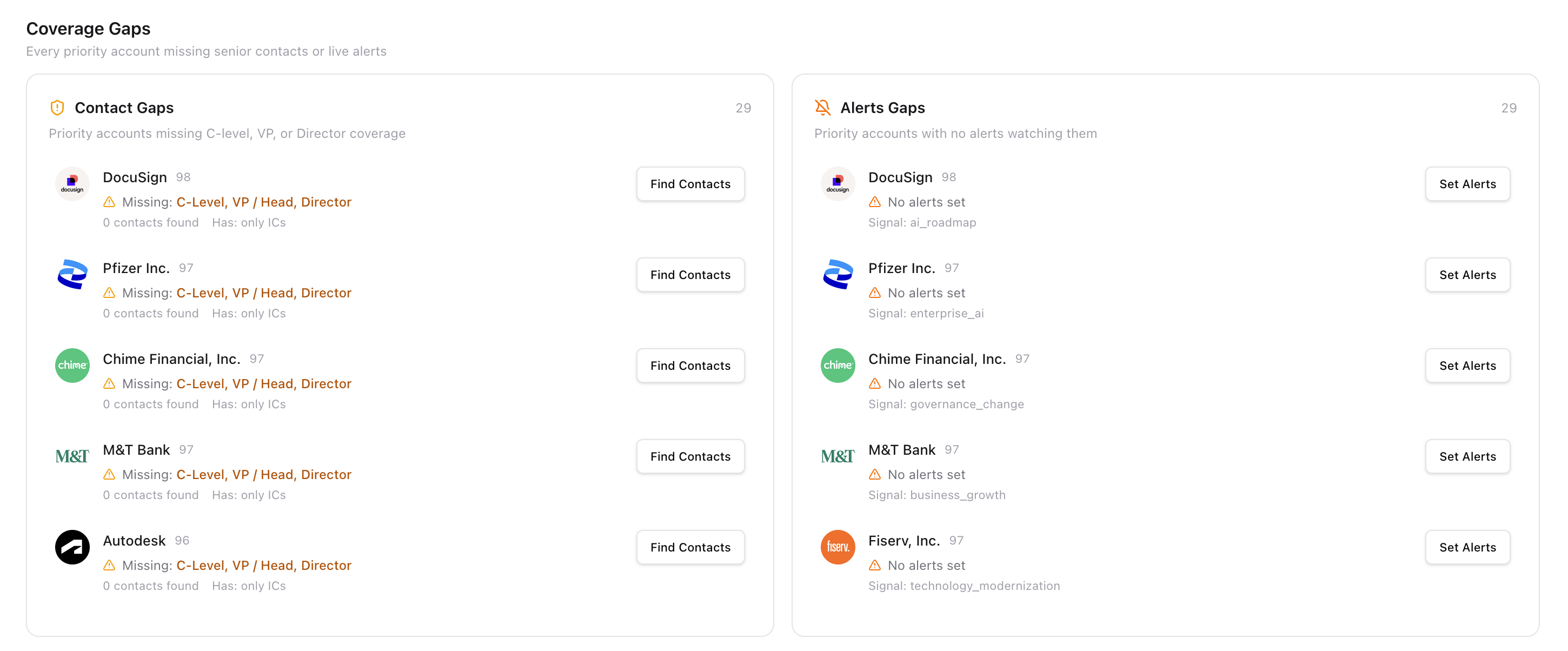
This section only includes priority accounts.
Contact Gaps
Lists accounts missing C-level, VP/Head, or Director coverage.
Find Contacts starts a background search for VP and C-level titles (CDO, CIO, CTO, VP of Data, Head of Data, and similar). This uses insights. The button shows "Searching" while it runs — you can keep using Home. When senior contacts are found, they appear in Contacts to Engage.
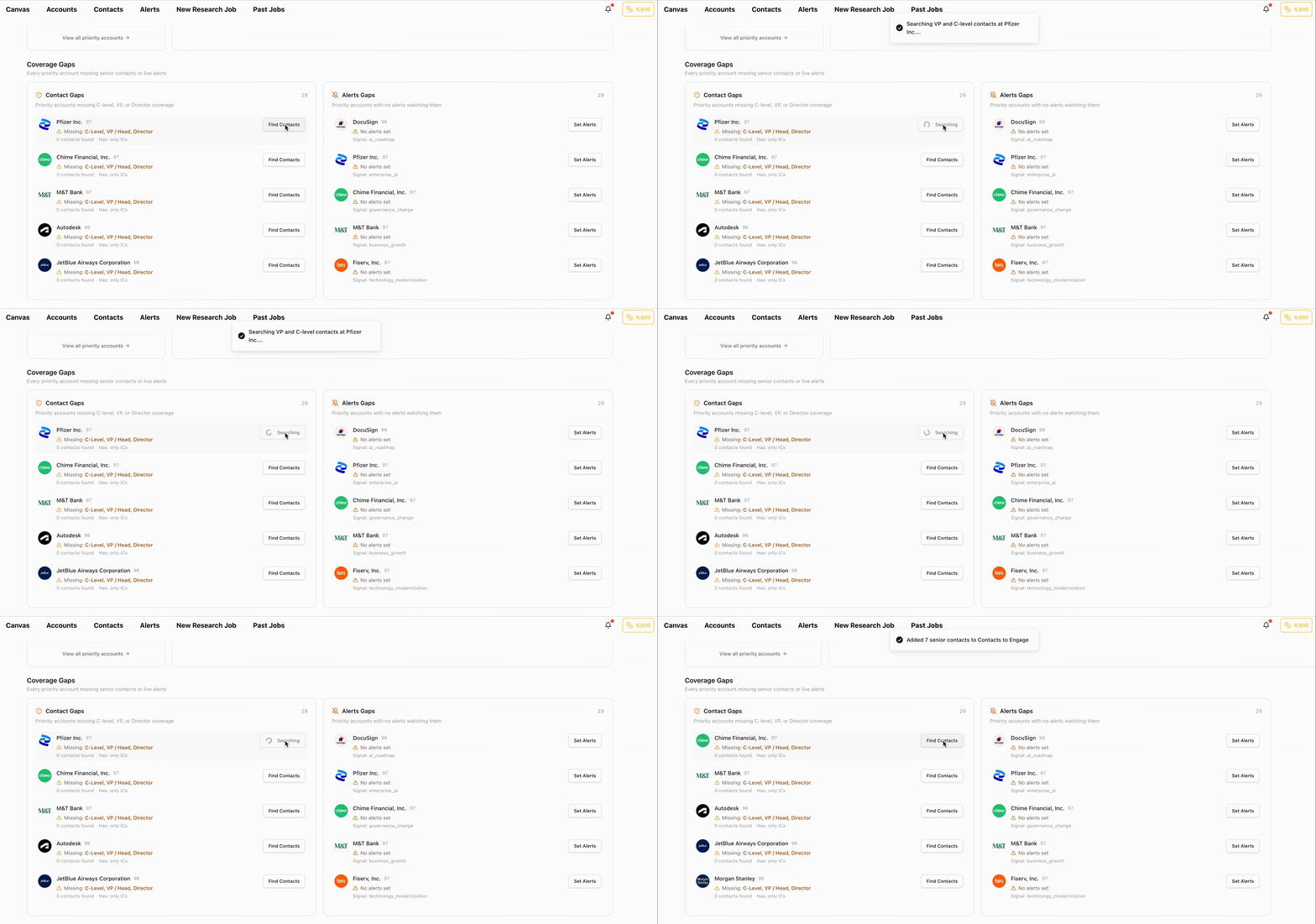
Start with the top one or two Strongest Signals accounts. Do not run search across the whole book in one sitting.
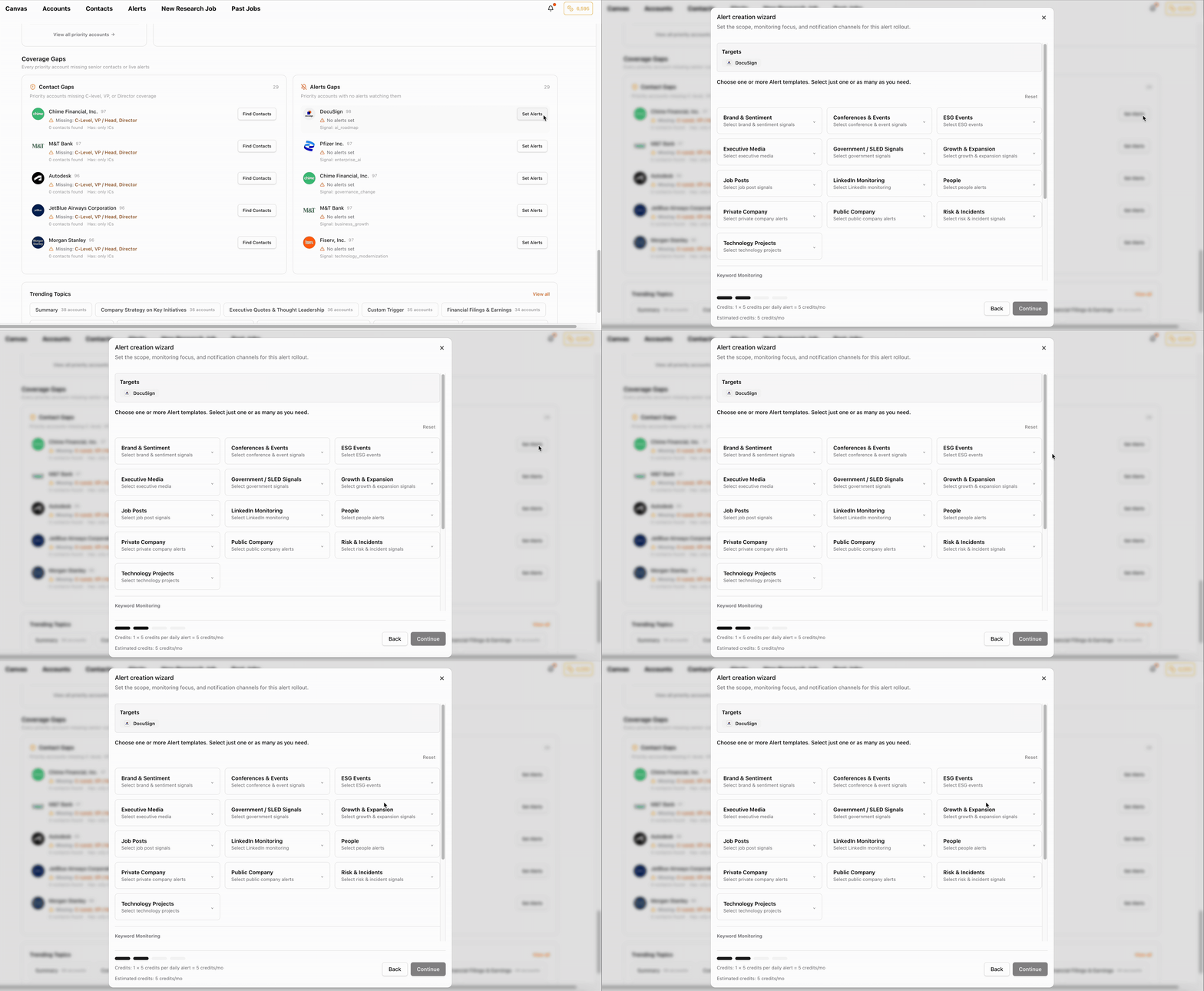
Alerts Gaps
Lists priority accounts with no alert watching them.
A hot account you are not monitoring will go quiet and drop off Strongest Signals. Set Alerts opens the alerts setup flow with that account already selected. You still choose the query, cadence, and channels.
Recent Alerts
The latest news from alerts you already set. Click an alert for the full event: summary, sources, and why it matters.
This is different from Alerts Gaps, which lists accounts that have no alert at all. Home cannot surface news you are not watching.
Ask AI Analyst
The AI Analyst is not just a Q&A box — it has access to all the same tools as Canvas and ChatAE chats. That means you can go from insight to action without leaving Home.
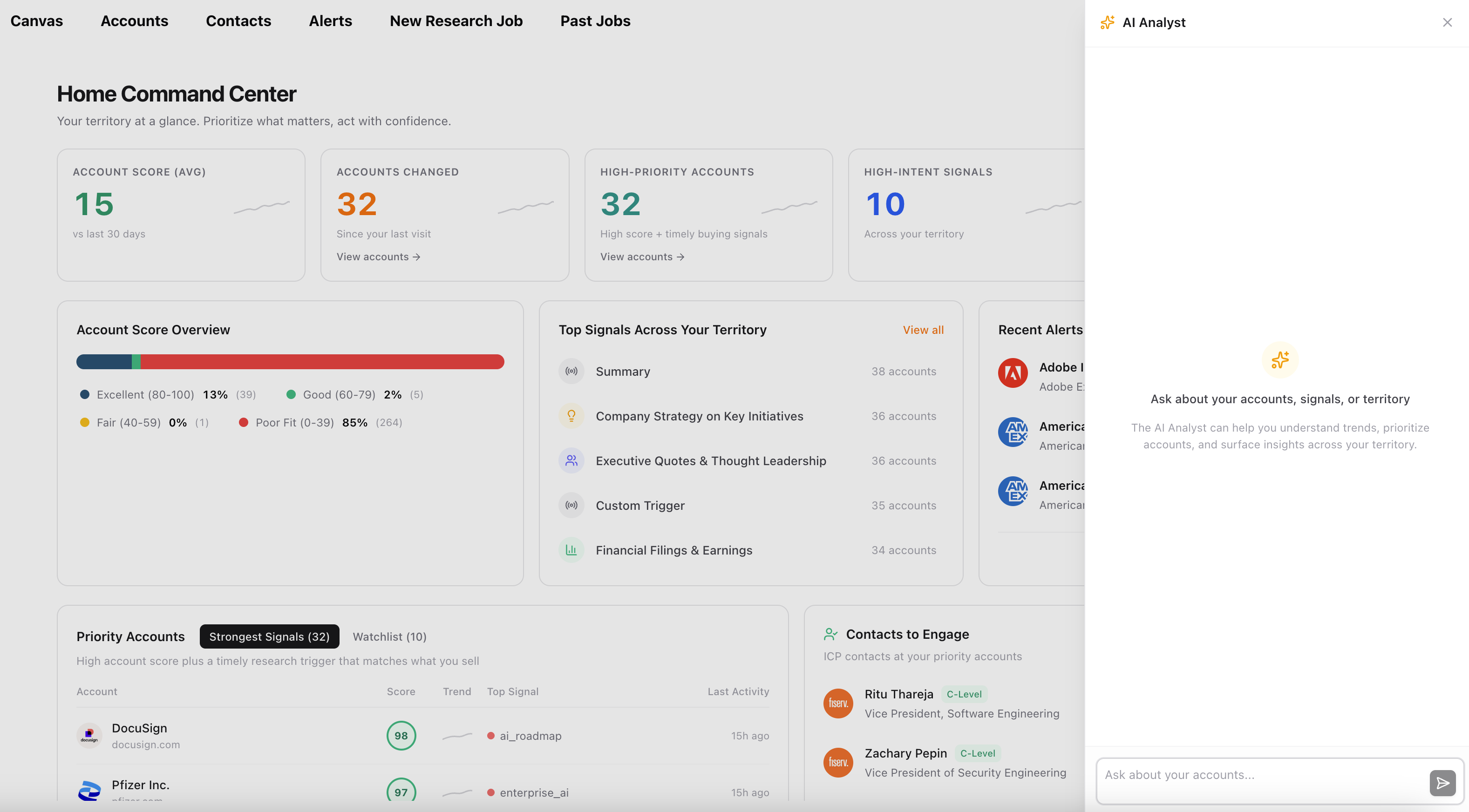
What it can do:
- Ask questions about your accounts, contacts, signals, and territory — anything Home is showing, it can explain.
- Plan and take action on accounts directly: find more contacts, build personalized messaging, generate content for outreach or your deal — landing pages, videos, deal rooms, org charts, and more.
You can use it to understand what's happening, then immediately act on it. No need to switch to another tool or start a separate workflow.
Example questions:
- "Why is [account] a priority this week?"
- "Which priority accounts are missing a CDO or VP of Data?"
- "Summarize the AI and hiring signals across my book."
- "Who should I call at [account], and what is the open?"
Example actions:
- "Find me VP-level contacts at DocuSign."
- "Draft a cold email to the CTO at Pfizer based on their AI roadmap signal."
- "Build a personalized landing page for Chime Financial."
- "Create an org chart for Fiserv based on the contacts we have."
Suggested Weekly Rhythm
Monday — Full loop. Rank the week from Strongest Signals. Close Alerts Gaps on the top accounts.
Mid-week — Recent Alerts and new research. Re-read the signal before any call.
Before a meeting — Strongest Signals row, then Contacts to Engage, then open the account.
Friday — Review Watchlist. Which high-score accounts went quiet?
FAQ
Why is an account in Account Score Overview but not in Strongest Signals? The overview includes every scored account. Strongest Signals requires a score of 70+ and a research hit in the last 30 days.
Why is Coverage Gaps shorter than my full book? Gaps are only shown for priority accounts, on purpose.
Will Find Contacts email people for me? No. It finds senior contacts. You still run outreach from the account or Contacts.
Will Set Alerts create the monitor for me? It opens setup with the account selected. You still choose the query and cadence.
Why did an account fall off Strongest Signals? Hits older than 30 days no longer count as timely. Re-run research or set alerts so the next event brings them back.
Does Home show every account I own? No. It highlights who to work now. Your full book still lives under Accounts.