
How to Automate SDR Admin Tasks with ChatAE
The Admin Problem for SDRs
SDRs spend most of their day not selling. They research accounts. They hunt for contacts. They update CRM fields. They write emails from scratch. They check for news that might be relevant to an account. They context-switch between six different tools to do work that should take minutes, not hours.
The data is consistent across every study: SDRs spend 60–70% of their time on administrative tasks and only 30–40% on actual selling activities — conversations, outreach, and relationship building.
ChatAE eliminates the admin layer. Not by replacing the SDR (that's what AI SDR tools do, and they produce spam). Instead, ChatAE accelerates the work that doesn't require judgment so you can spend your time on the work that does.
Here's how to use ChatAE to automate the five administrative tasks that eat most of an SDR's day.
1. Account Research That Runs Itself
The manual version: Open LinkedIn, Google News, the company's blog, their investor page, their job listings. Read through everything. Try to figure out what's relevant to what you sell. Repeat for every account in your book.
With ChatAE: Run research once and get synthesized triggers — not just signals, but reasons to reach out tied to what you sell.
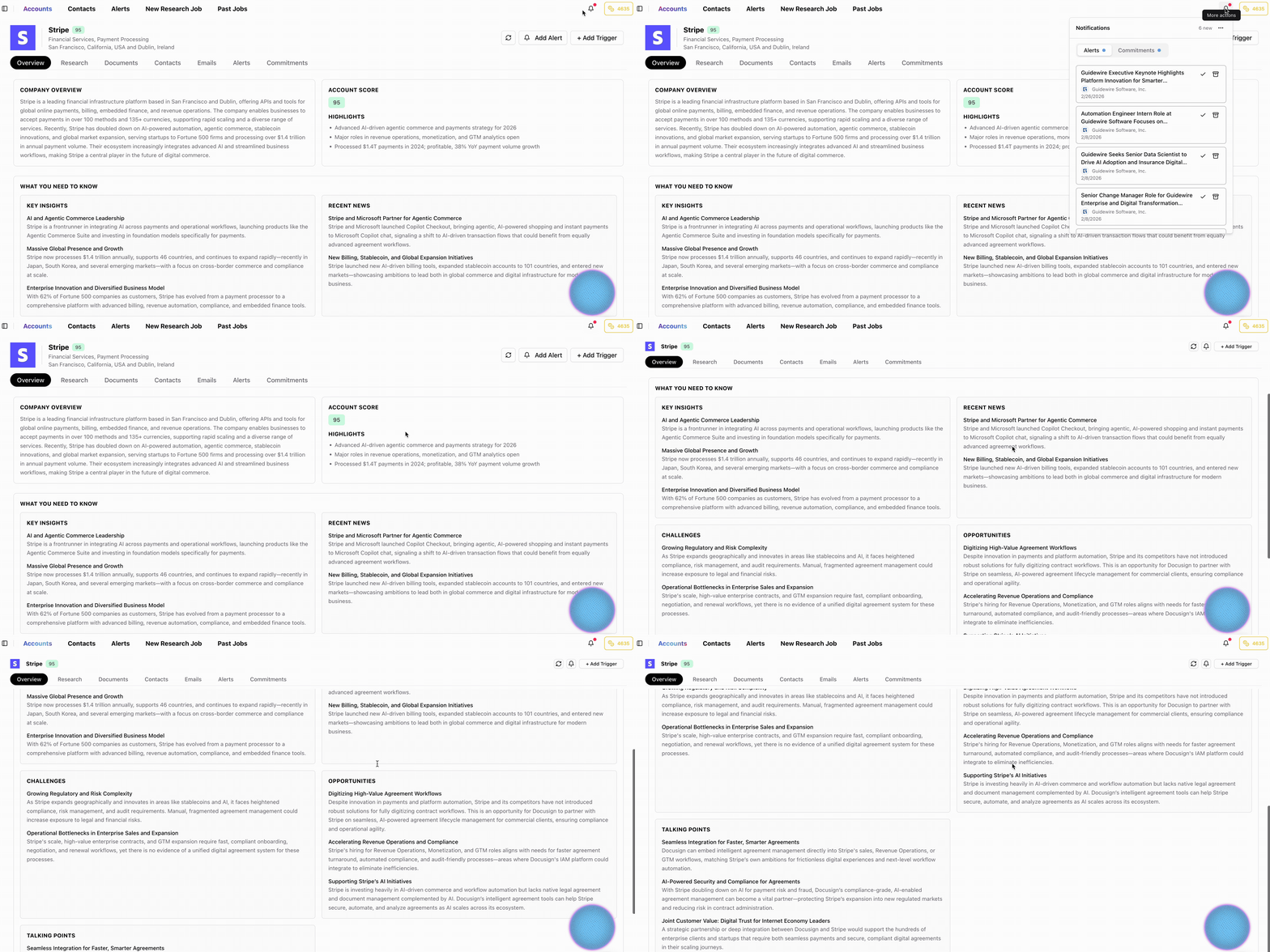
ChatAE doesn't just aggregate news. It evaluates every piece of information against your profile — what you sell, who you sell to, and how you sell it — then surfaces only the triggers that create a selling opportunity.
How to set it up:
- Complete your profile with your company, role, and what you sell.
- Save research triggers that match your motion — leadership changes, hiring patterns, product investment, cost pressure, compliance shifts.
- Run research on your accounts.
From that point forward, ChatAE maintains account context continuously. When something changes at an account, you'll know — and you'll know why it matters.
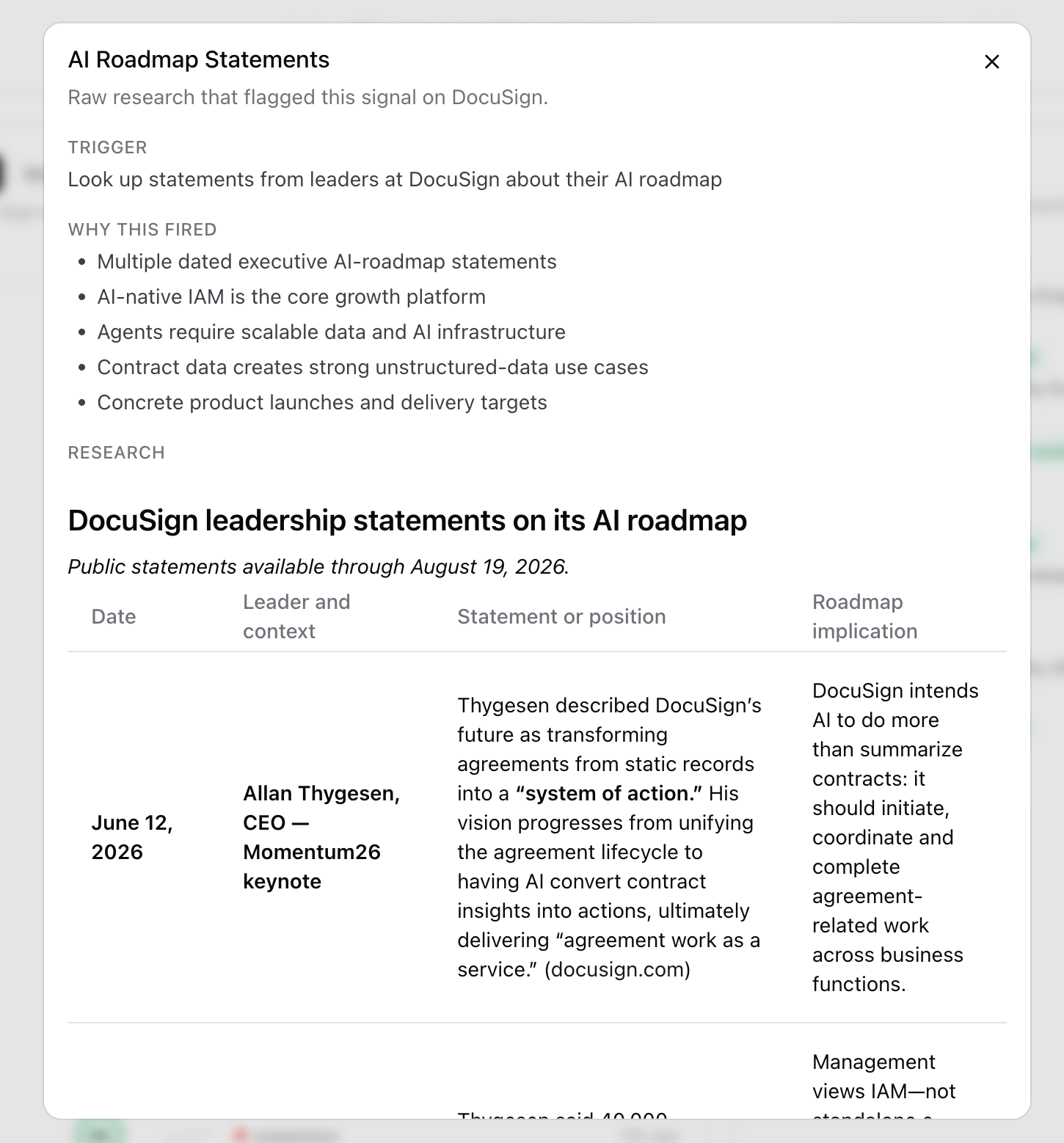
Each research result includes the trigger that fired, why it's relevant to your sale, and the sourced evidence. You're not reading raw news — you're reading an analyst brief built for your deal.
2. Contact Enrichment Without the Tab Switching
The manual version: Go to LinkedIn Sales Navigator. Search for titles. Cross-reference with your CRM. Check if the email is valid. Try a different enrichment tool. Copy data into your system. Repeat for every account.
With ChatAE: Click Find Contacts. Walk away.
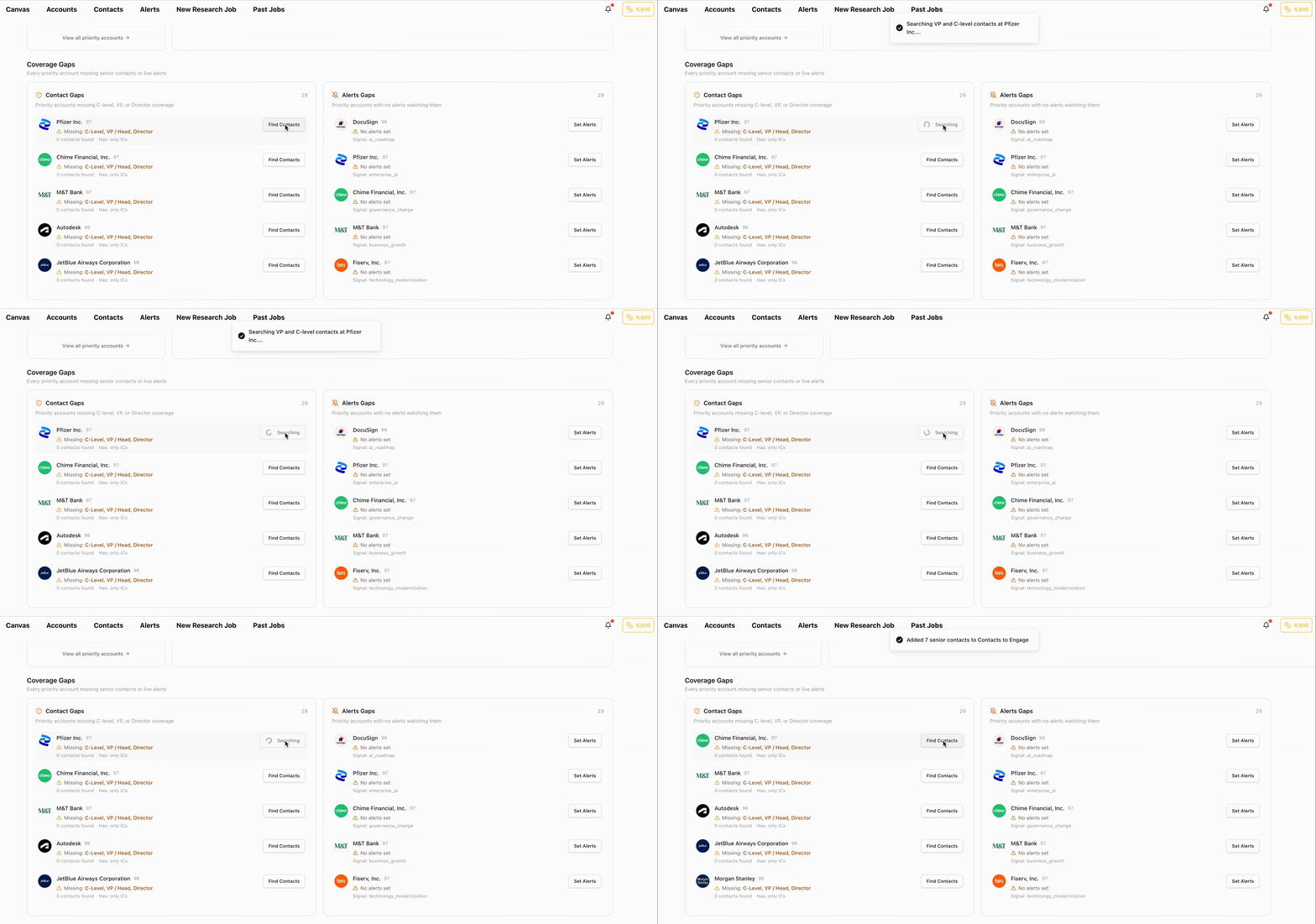
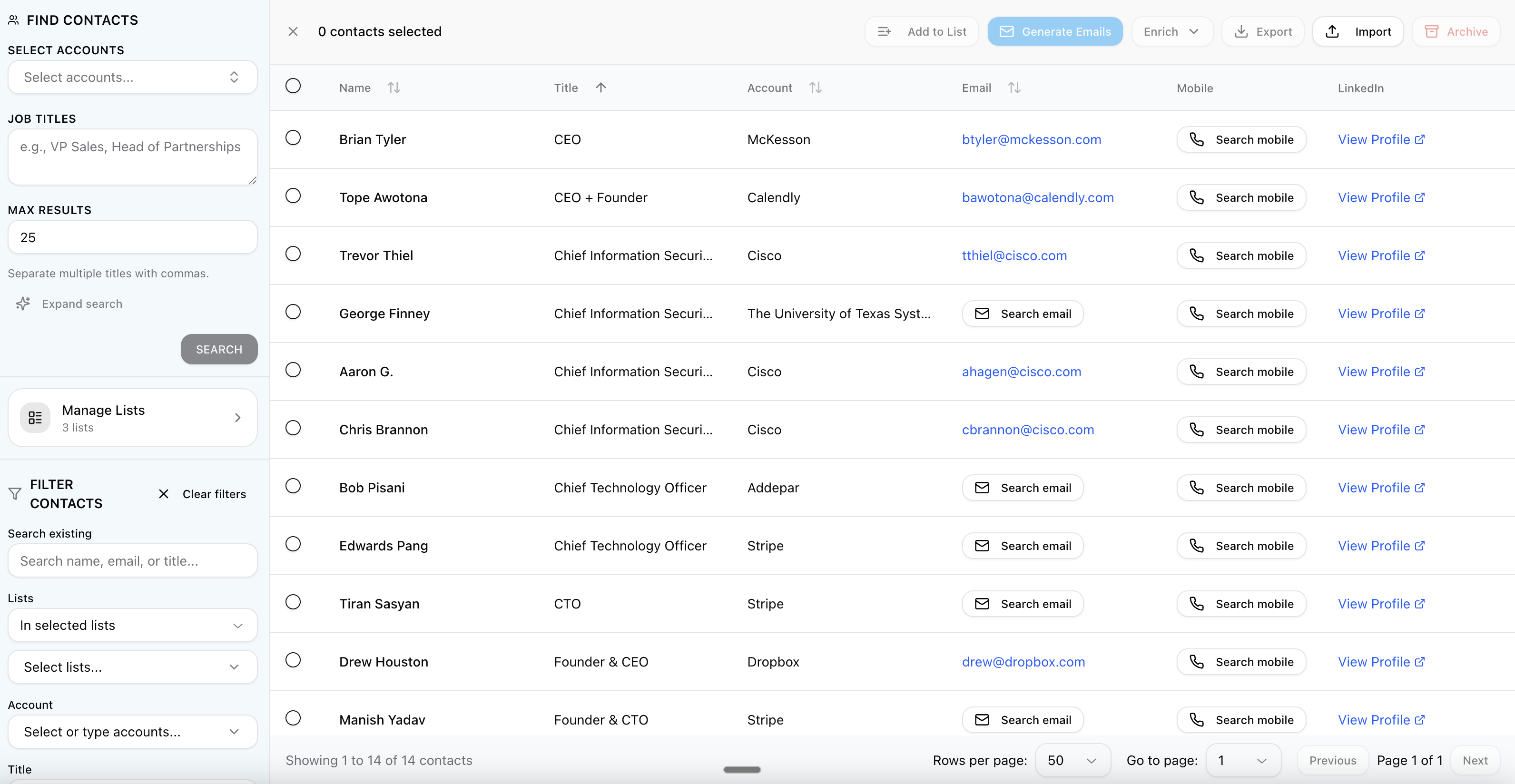
ChatAE uses a waterfall enrichment strategy across multiple data providers — so you're not limited to one source. It searches for the seniority levels that matter for your deal (C-level, VP, Director) and enriches them with verified contact data.
What this looks like in practice:
- You identify a priority account from your research.
- You click Find Contacts on that account.
- ChatAE runs a background search while you keep working.
- Senior contacts appear in your workspace with enriched profiles, ready for outreach.
No tab switching. No manual data entry. No cross-referencing. The contacts show up where you need them, with the data you need to act.
3. Alerts That Monitor Accounts for You
The manual version: Set a Google Alert. Get irrelevant results. Check LinkedIn manually. Ask colleagues if they've heard anything. Miss the news that actually mattered because you were busy with the 47 other accounts in your book.
With ChatAE: Set context-aware alerts that monitor your accounts and push relevant events to you — in Slack, email, or directly in your workspace.
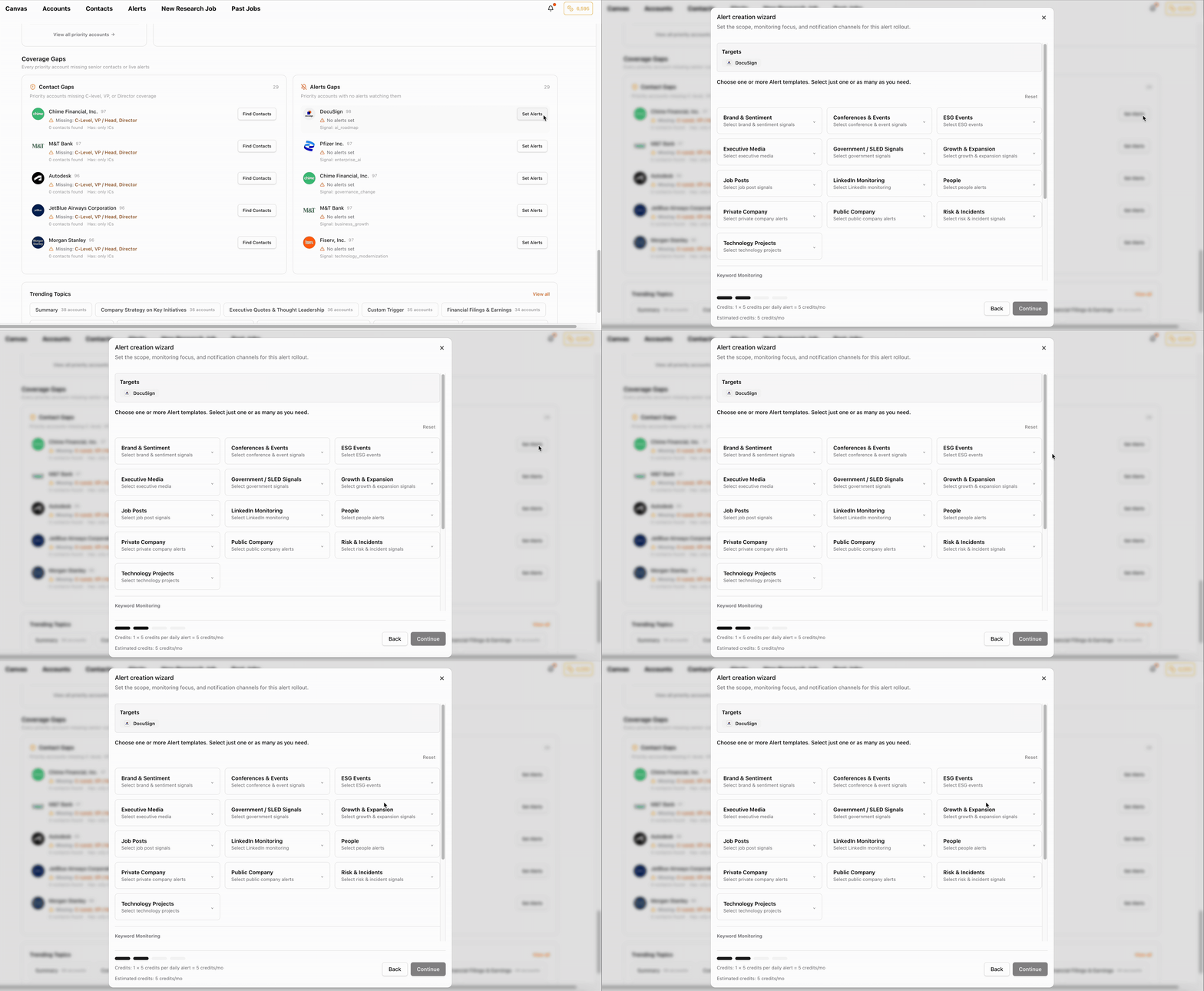
The difference between ChatAE alerts and generic news monitoring: ChatAE alerts are evaluated against your research triggers and your selling motion. A leadership change at an account you sell data infrastructure to is a different kind of alert than a leadership change at an account you sell HR software to. ChatAE knows the difference.
Example alert workflow:
- You identify your top 10 priority accounts from Home Command Center.
- For each one, you set alerts from the Alerts Gaps section — the account is pre-selected, you just choose the query and cadence.
- When something happens at those accounts, the alert fires with context: what happened, why it matters for your deal, and sourced evidence.
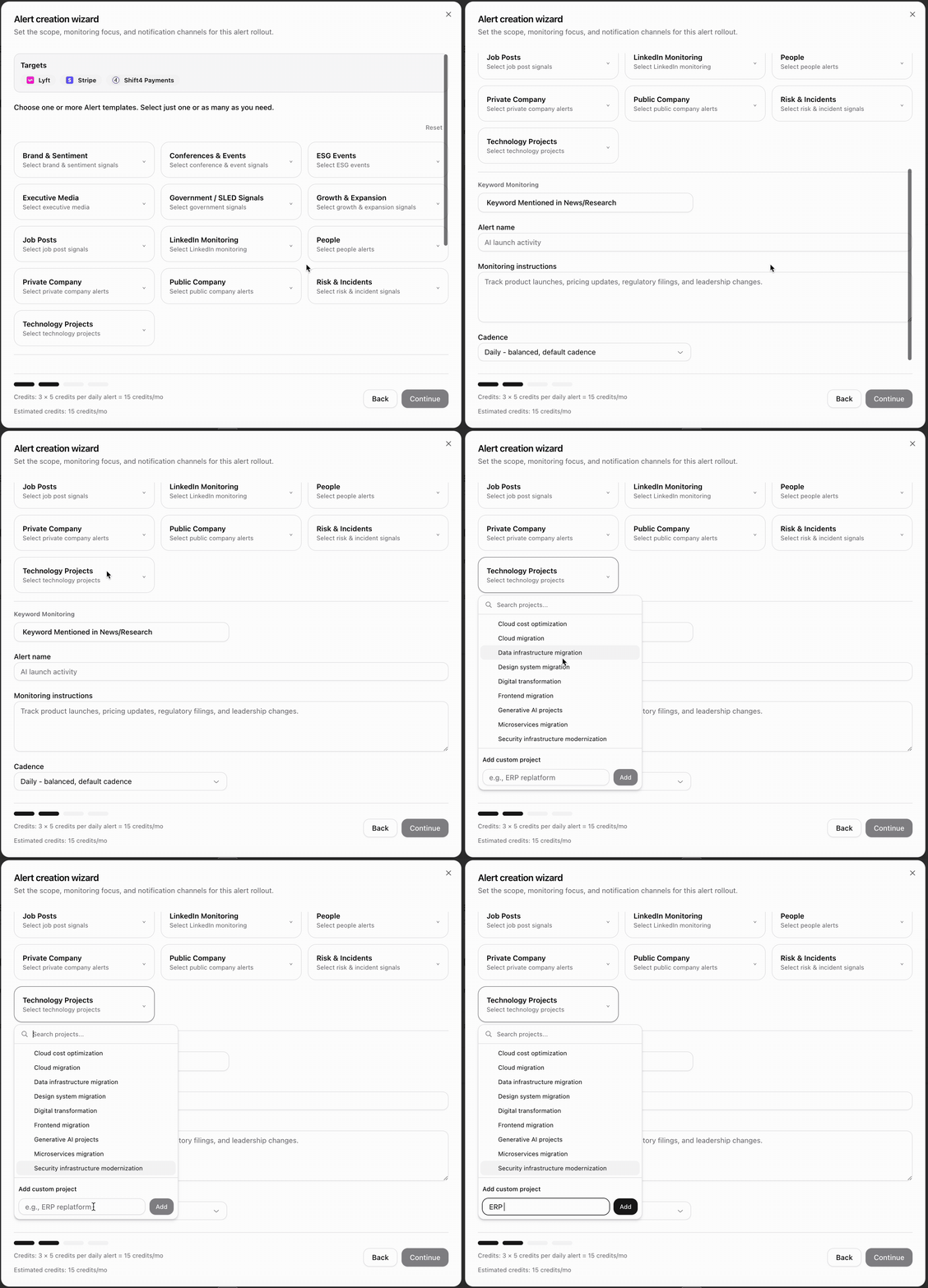
You stop checking. The system watches. When something moves, you know.

4. Email Drafts Grounded in Account Research
The manual version: Open a blank compose window. Try to remember what you read about the account. Write something generic. Rewrite it. Check if it sounds like you. Send something you're only half-confident about. Repeat 30 times a day.
With ChatAE: Generate personalized email drafts grounded in your account research, written in your voice, ready to review and send.
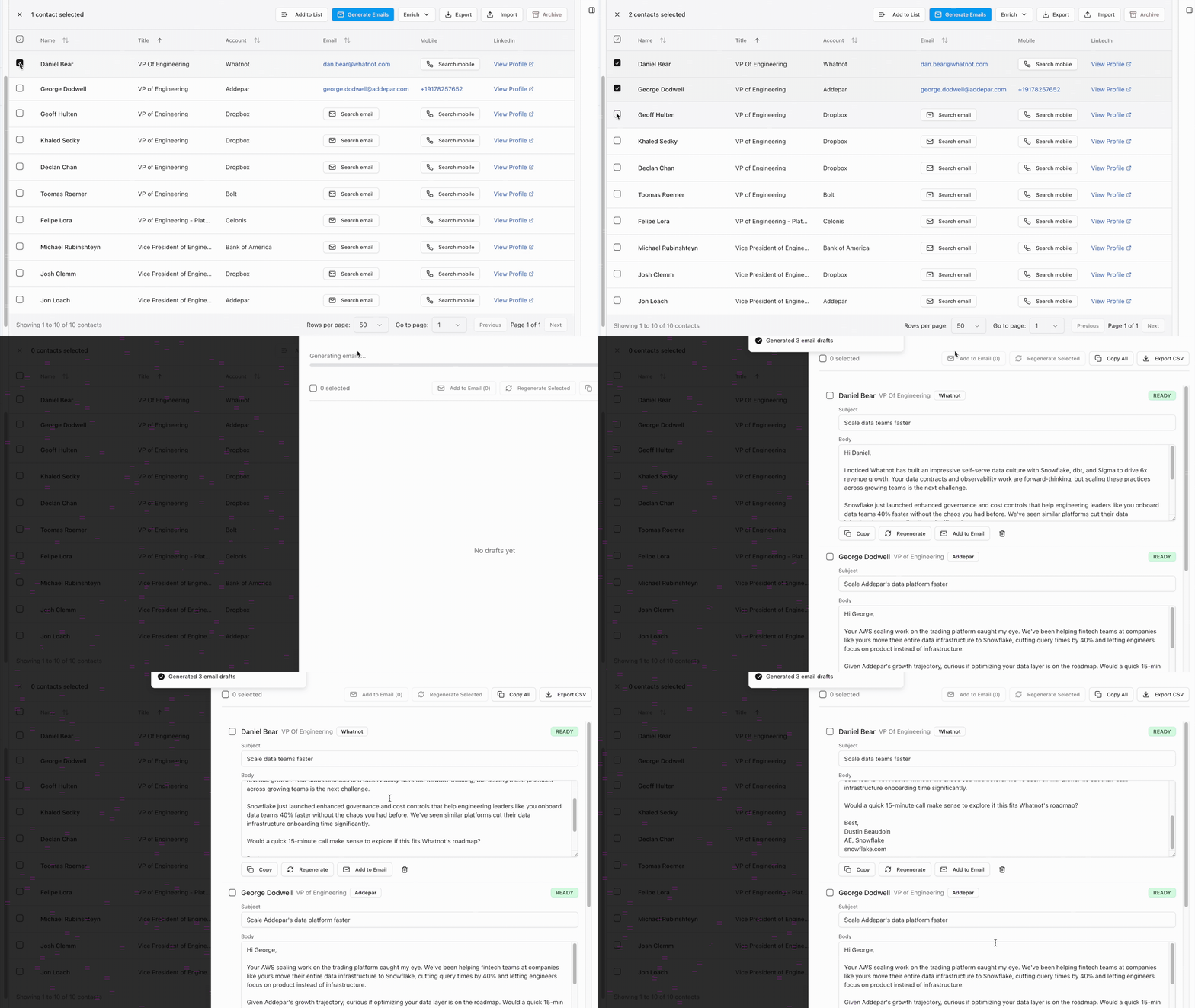
This is not template-based email generation. Every draft is built from:
- Account research — the specific triggers and context ChatAE has synthesized for that account.
- Contact context — who the person is, their role, their seniority.
- Your voice — ChatAE learns how you write and generates drafts that sound like you, not a robot.
The key difference: ChatAE drafts emails. It does not send them. You review, edit if needed, and send when the timing is right. This is acceleration, not automation. The judgment stays with you — the grunt work doesn't.
Example:
You're reaching out to a VP of Engineering at a company that just announced an AI roadmap initiative. Instead of writing from scratch:
- Open the contact profile.
- Generate a draft.
- ChatAE writes an email that references the AI roadmap, ties it to what you sell, and opens with a relevant angle — all in your voice.
- You review it, adjust the timing hook, and send.
What took 15 minutes now takes 2.
5. Daily Prioritization Without the Spreadsheet
The manual version: Open your CRM. Export your accounts. Sort by last activity. Cross-reference with your notes. Try to remember who's hot. Build a to-do list. Immediately get pulled off it by whatever's loudest.
With ChatAE: Open Home Command Center. Your day is already planned.
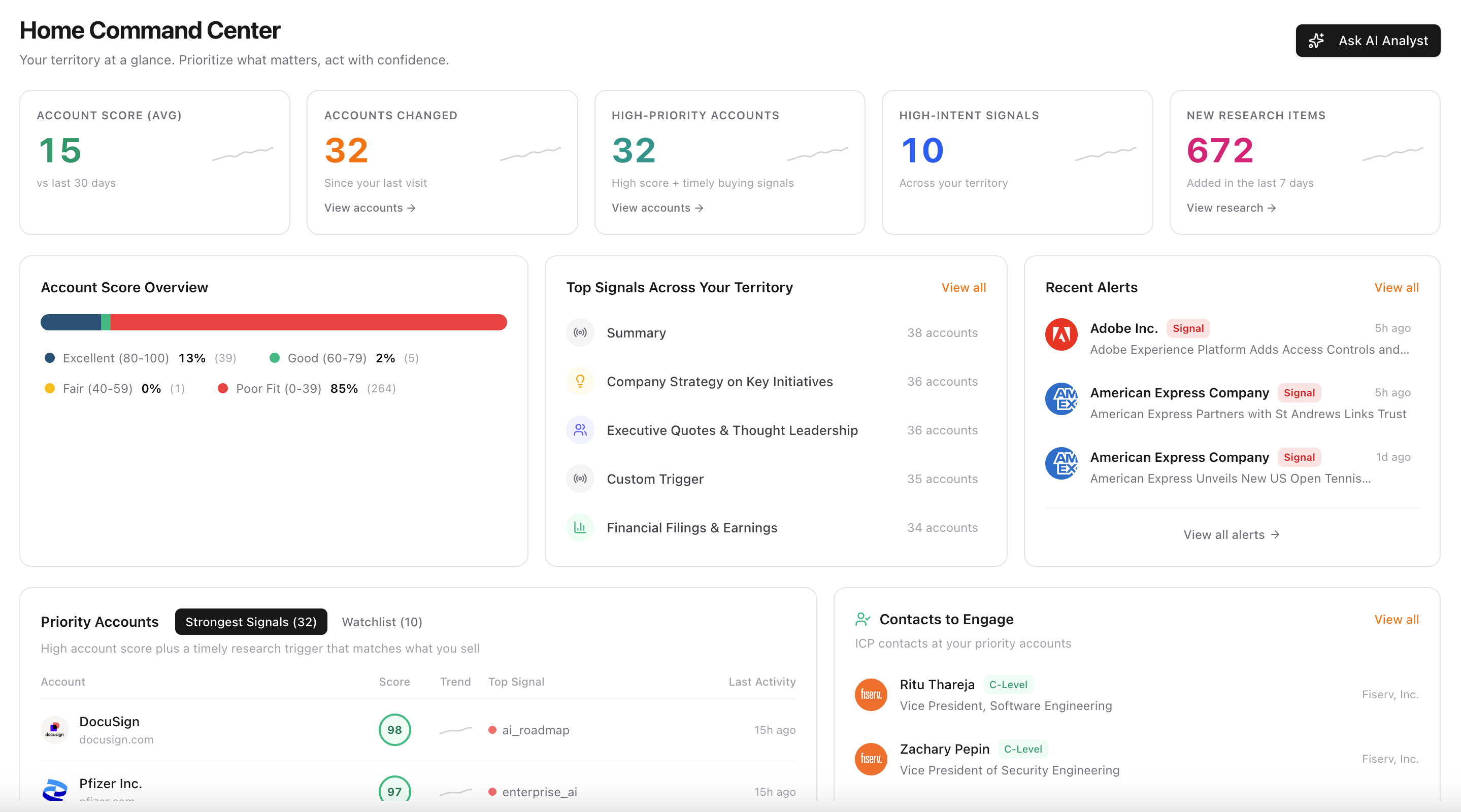
Home Command Center answers three questions every morning:
- Who should I work today? — Priority accounts ranked by score and signal freshness.
- Why is this account hot right now? — The specific trigger that fired, with evidence.
- What's blocking me? — Missing contacts or gaps in monitoring.
The 10-minute daily loop:
- Check KPI cards — is the book healthier or stalling?
- Read Strongest Signals — pick 2–3 accounts for the morning.
- Check Contacts to Engage — who can you reach at those accounts?
- Close Coverage Gaps — find contacts or set alerts on priority accounts that need them.
- Review Recent Alerts — anything move overnight?
You don't build the plan. The plan builds itself from your research, your triggers, and your selling motion.
Putting It All Together: The SDR Day Without Admin
Here's what a day looks like when administrative tasks are handled:
8:00 AM — Open Home Command Center. Three accounts have new signals. One VP changed roles at a priority account. Another account announced a product initiative that maps to your trigger for "platform investment."
8:10 AM — Read the research. Click into the signal. Read the trigger, the reasoning, and the sources. You now have a POV for outreach — in 2 minutes, not 30.
8:15 AM — Check contacts. You already have a VP of Engineering at the first account. The second account has a contact gap. You click Find Contacts — it runs in the background.
8:20 AM — Draft outreach. Generate a personalized email for the VP of Engineering. It references their company's platform initiative and ties it to what you sell. You adjust one line and queue it.
8:25 AM — Set alerts. The account with the product initiative has no alerts watching it. You set one from the Alerts Gaps section — pre-filled, 30 seconds.
8:30 AM — Sell. You've done 30 minutes of admin work in 10. The rest of your day is conversations, calls, and relationship building.
That's not hypothetical. That's the workflow Home Command Center is built around.
What This Doesn't Do
ChatAE is not an AI SDR. It does not:
- Send emails for you
- Automate follow-up sequences
- Book meetings without your involvement
- Spam contacts at scale
- Remove you from the process
It accelerates the work that doesn't require judgment — research, enrichment, monitoring, drafting — so you can spend your time on the work that does.
The goal is not automation. The goal is more selling time in the same number of hours.
Getting Started
If you're an SDR spending most of your day on admin work instead of selling:
- Set up your profile — Tell ChatAE what you sell and how you sell it.
- Define your research triggers — What events create selling opportunities for you?
- Run research on your top accounts.
- Find contacts at priority accounts.
- Set alerts so you stop manually checking for news.
- Use Home Command Center as your daily starting point.
Within a week, the administrative layer disappears. Your accounts are researched. Your contacts are enriched. Your alerts are watching. Your emails are drafted. And your day starts with a plan, not a spreadsheet.